Bunting Pro
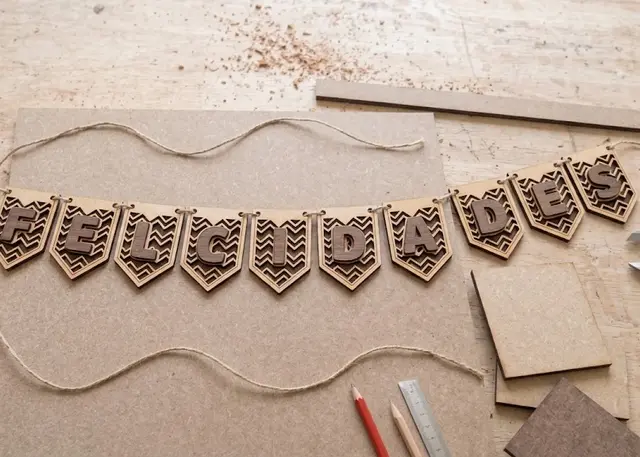
A garland of pennants in the shape you choose, with a polka-dot, diagonal or zigzag pattern and one letter on each.
Five shapes, a polka-dot, diagonal, zigzag or striped pattern, and one letter per pennant: engraved, cut out or cut separately to glue on top.
How it is made
One letter per pennant. Type the word and you get one pennant per letter; a space leaves a plain one, to separate words. With no text, you choose how many you want.
The pattern and the letter go on in three ways. Engraved, they mark the wood. Cut out, they go through: the pattern keeps a plain margin at the edge, so the pennant never splits. Cut separately, they are glued on top, in another colour or wood, and the pennant gets an engraved mark showing where each one goes.
The pattern makes room for the letter. Around each letter there is a clear area, adjustable, so it reads from a distance.
Cut-out letters lose their centres. "O", "A" or "B" leave loose bits when cut out. For those, cut them separately — they also look better in another colour.
To hang them, use the two holes at the top: the string goes in through one and out through the other, and the pennant hangs straight.
Frequently asked questions
Bunting: what size can it be?
Every measurement is typed in millimetres and the drawing is redone as you type: width, from 30 to 400 mm, height, from 30 to 600 mm and holes, from 1.5 to 15 mm. Everything else — joints, dividers, holes — is worked out from those measurements.
Does it work for MDF, acrylic or plywood?
For any sheet your laser can cut: MDF, plywood, acrylic or thick card. What matters is the thickness, adjustable from 0.5 to 20 mm, and the kerf — what the beam eats away: the joints are drawn from those two numbers, so they push together without sanding.
What format does it download in?
SVG or DXF, your choice, in millimetres and at 1:1 scale. It opens as is in LightBurn, RDWorks, LaserGRBL, Inkscape, Illustrator or CorelDRAW, with nothing to scale or convert. Cutting and engraving come on separate named layers — “Cut” in red and “Engrave” in blue — so you set the power for each without separating anything by hand.
Do I have to pay to use it?
Bunting is free to use and adjust: you can see exactly how your design will come out before deciding anything. Downloading the file needs the Pro plan, or one of the trial downloads that come with the free account.
Others you might need
-
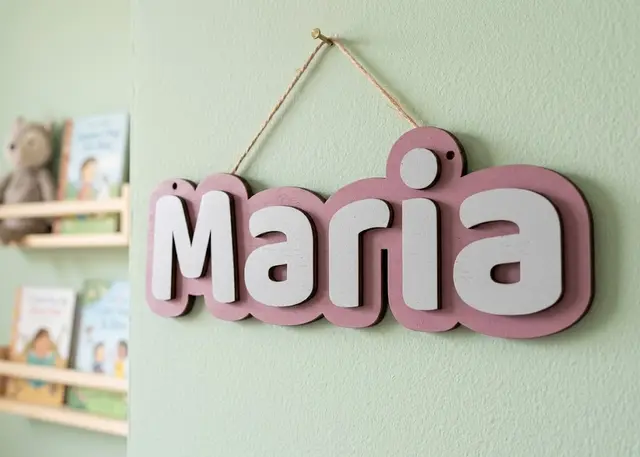 Door name sign A name to hang on a door: a one-piece backing and every letter loose, so you can paint each one a different colour.
 -
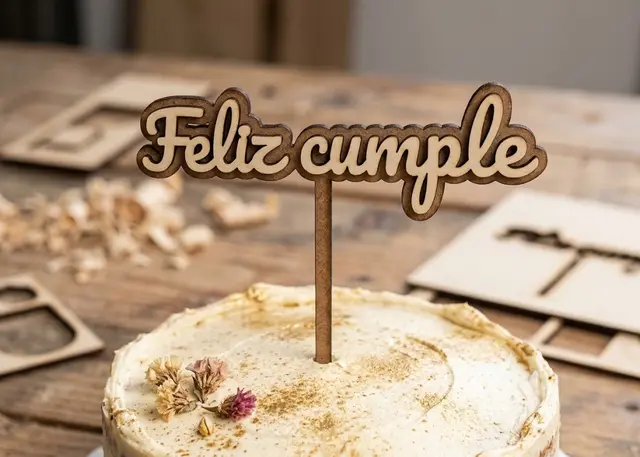 Cake topper A name with legs to stick into the cake, in one single piece so nothing falls off.
 -
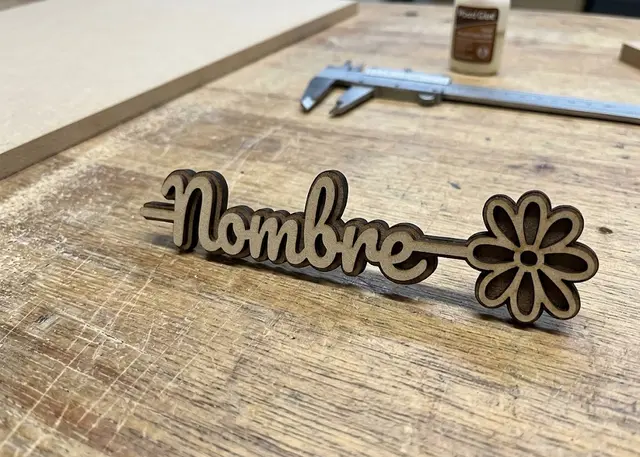 Name with a flower A name on a stem with a flower at the tip, in two layers to glue and contrast.